
Use the Aircraft page in the Platform Configuration at Configuration > Aircraft to configure various settings related to your SynapseMX account.

To edit an existing Aircraft, click the Aircraft's title or the Edit button on the aircraft card you want to change.

That will take you to a screen where you can edit the details for your new aircraft.
The Details tab

- Tail Number: The registration or nose number of the Aircraft (required)
- Aircraft Type: The Aircraft Type for this aircraft (required)
- Serial Number: An additional detail you can provide which helps identify the Aircraft (optional)
The Image tab

If desired, you can upload an image of the Aircraft that will be used. If not, the Aircraft Type image will be used if available. If no images are configured, users will see a text-only card.
The Settings tab
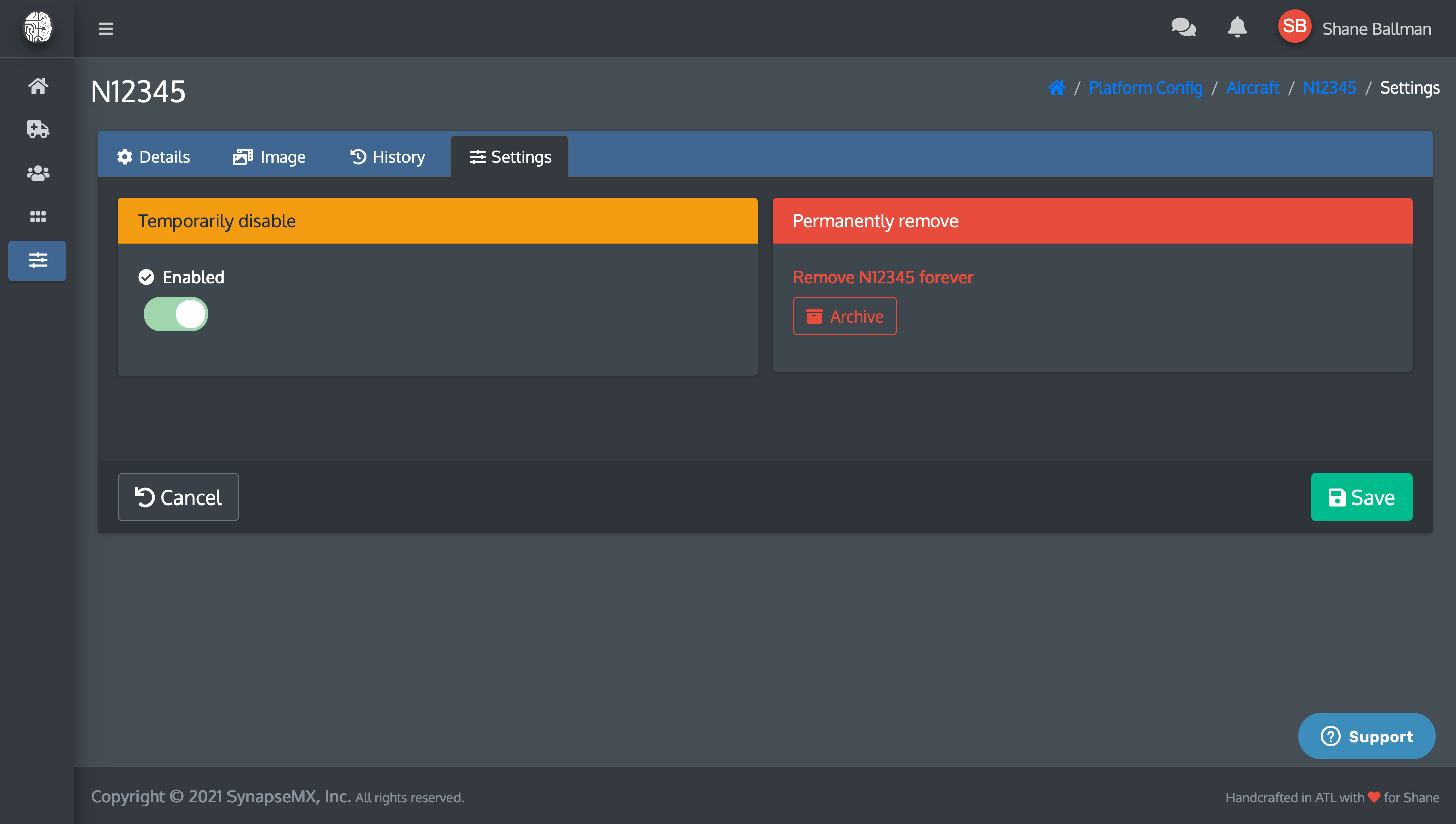
- Temporarily disable: If you disable the Aircraft, it prevents users from being able to select the Aircraft from any of the dropdown menus elsewhere in the app. It will still show up in the Aircraft list when the filter is set to show inactive Aircraft.
- Permanently remove: If you want to remove the Aircraft completely. See Removing a Aircraft for more details.
Click Save when finished.
You will be returned to the Aircraft listing, where your updated Aircraft will be ready for use. NOTE: You may need to adjust your filters to see the change(s).

Comments
0 comments
Please sign in to leave a comment.