
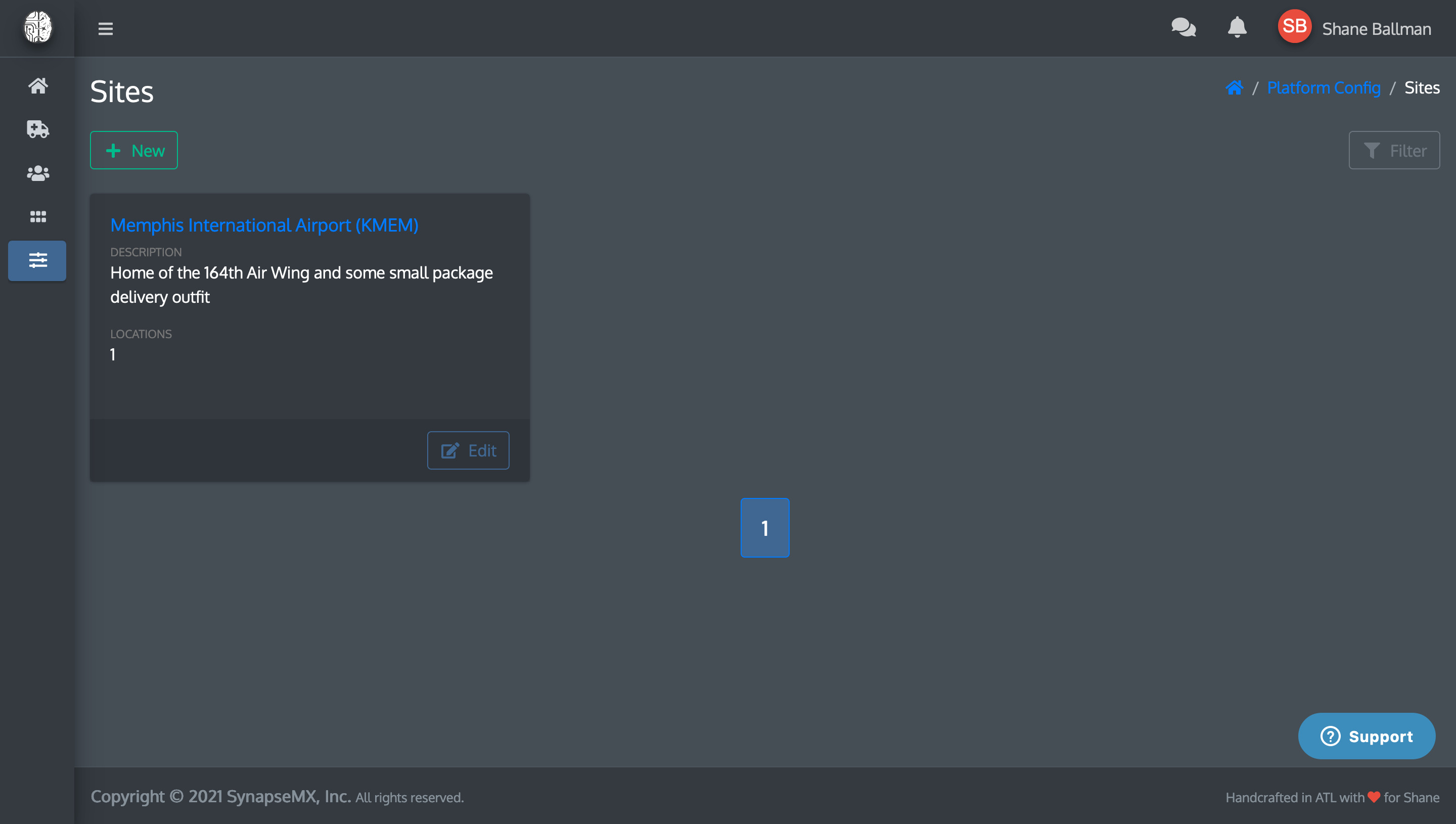
Use the Sites page in the Platform Configuration at Configuration > Sites to configure various settings related to your SynapseMX account.

To remove a Site Location, click the Site title or the Edit button on the site card you want to change.

That will take you to the Site edit screen where you can remove the Site Location.
The Locations tab

The Locations tab shows you all existing Site Locations, both active and inactive. To remove a Site Location, click the Blue edit button to the right of the Site Location row.

- Temporarily disable: Toggle enabled on/off. If you disable the Site Location, it prevents users from being able to select it from any of the dropdown menus elsewhere in the app. It will still show up in this Site Locations list.
- Permanently remove: If you want to remove the Site Location completely.
Click the red Archive button to remove the Site Button.
You will be prompted to make sure you want to remove the Site Location. If you're certain, click Remove.

You will see the Locations list update but you will not leave this page. Repeat to remove additional Site Locations from this Site, if desired.

Click the green Save button when you've finished removing Site Locations.
You will be returned to the Sites listing, where your updated Site will be ready for use.
Comments
0 comments
Please sign in to leave a comment.